

How-to guide
Connect ImpactAccounting.ai to Claude
Add the ImpactAccounting.ai connector to Claude in a minute, so you can read your published results, build dashboards and start new projects from the conversation.
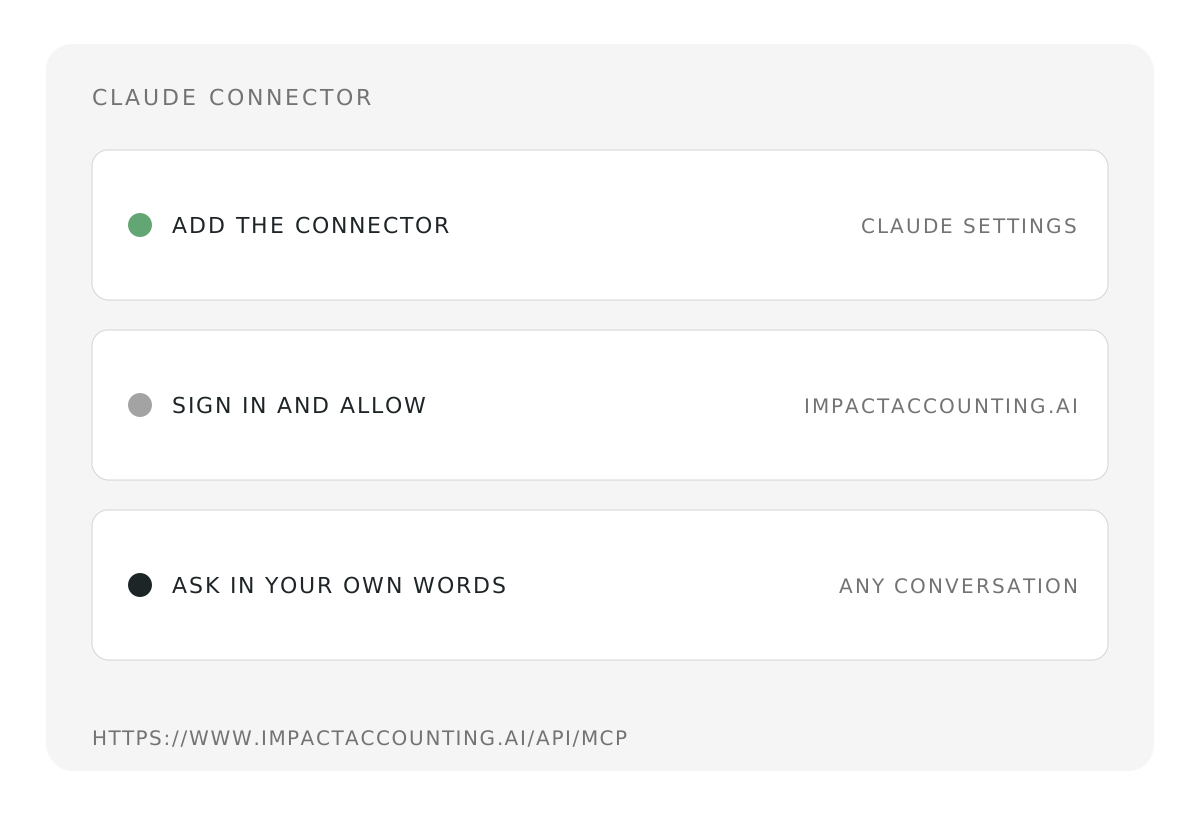
The ImpactAccounting.ai connector lets Claude work with your account. It reads the published results of your workspaces, so you can ask questions about them or build a dashboard. In the workspaces you edit, it can also start a new project for you, from the documents you choose to the brief the analysis asks you to settle. Claude sees only what you can see here.
You connect it once, in Claude's settings. Connectors follow your Claude account, so it then also appears in the desktop and mobile apps, and in Claude Code when you sign in to it with your Claude subscription.
Add the connector
- In Claude, open Customize, then Connectors.
- Choose Add, then Custom, then Web.
- Name it ImpactAccounting.ai and enter the address
https://www.impactaccounting.ai/api/mcp. - Leave the advanced OAuth settings empty: Claude registers itself.
- Choose Connect.
On a Team or Enterprise plan, only an owner of your Claude organization can add a custom connector. Once they have, find it in your list of connectors, marked Custom, and choose Connect to sign in with your own account. Anthropic's guide to custom connectors has the details for each plan.
Sign in and allow
Claude opens an ImpactAccounting.ai page. Sign in with your usual account, by emailed code or Google, if you are not signed in already. The page then says what you are allowing:
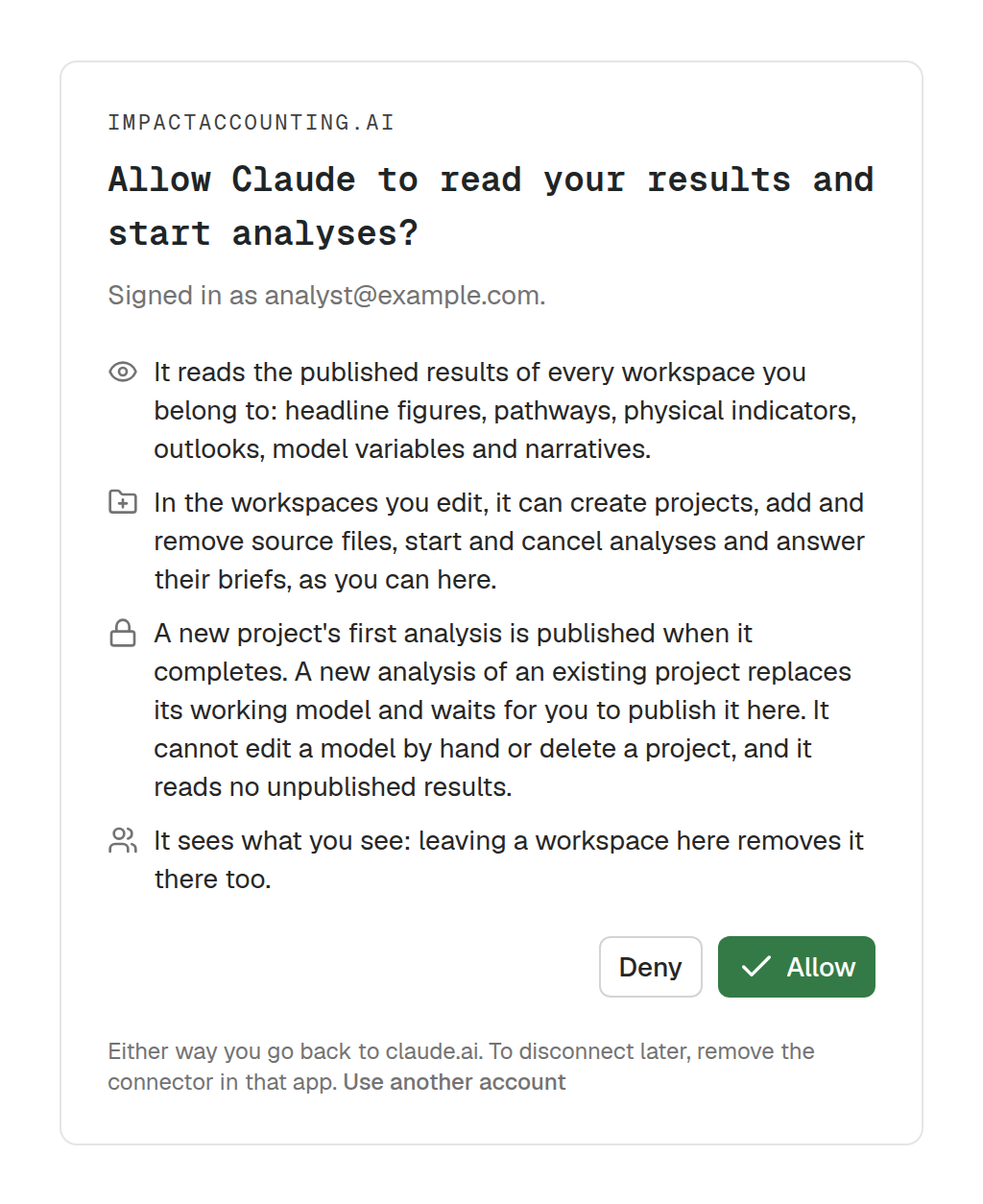
- Claude reads the published results of every workspace you belong to.
- In the workspaces you edit, it can create projects, add and remove source files, start and cancel analyses, and answer their briefs, as you can in the app.
- A new project's first analysis is published when it completes, unless it cannot be valued as it stands, and Claude tells you which. A new analysis of an existing project replaces its working model and waits for you to publish it in the app.
- It cannot edit a model by hand or delete a project, and it never reads unpublished results.
Choose Allow, and you are back in Claude with the connector listed as connected.
Use it
Turn the connector on in a conversation from the tools menu if it is not on already, then ask in your own words. For example:
- "Build a dashboard of the net impact of every company in my portfolio workspace, by capital."
- "Prepare the one-page board summary for Nutris."
- "What would change if the yield gain were half of what was assumed?"
- With a folder of documents open in the Claude desktop app or in Claude Code: "Value this company: pick the documents that matter and start the analysis."
The connector tells Claude to read the recipes our analysts wrote for each of these jobs, and to ask you before it creates a project, starts an analysis or settles anything in a brief; it did both in our trial. The figures the connector returns are your published results, and anything it computes on top, such as a what-if, comes back labelled as such. Check Claude's own wording against them, as you would any summary.
In Claude Code
If you added the connector on claude.ai and sign in to Claude Code with the same Claude subscription, it is already there. To add it to Claude Code on its own, run:
claude mcp add --transport http impactaccounting https://www.impactaccounting.ai/api/mcpThen type /mcp in Claude Code and sign in when it asks.
Disconnect
To stop Claude using it, remove the connector in Claude's Connectors settings, and, if you added it to Claude Code on its own, run claude mcp remove impactaccounting there too. The approval you gave stays on your ImpactAccounting.ai account until it is revoked: ask us if you want it revoked. Leaving a workspace in ImpactAccounting.ai also removes it from what Claude can see.
To see the connector at work on a real data room, read We handed Claude a data room and our connector.