
How-to guide
Building scenarios
Decide whether your comparison needs a scenario, a separate assessment or a baseline correction — then build one, check it, and interpret what actually changed.
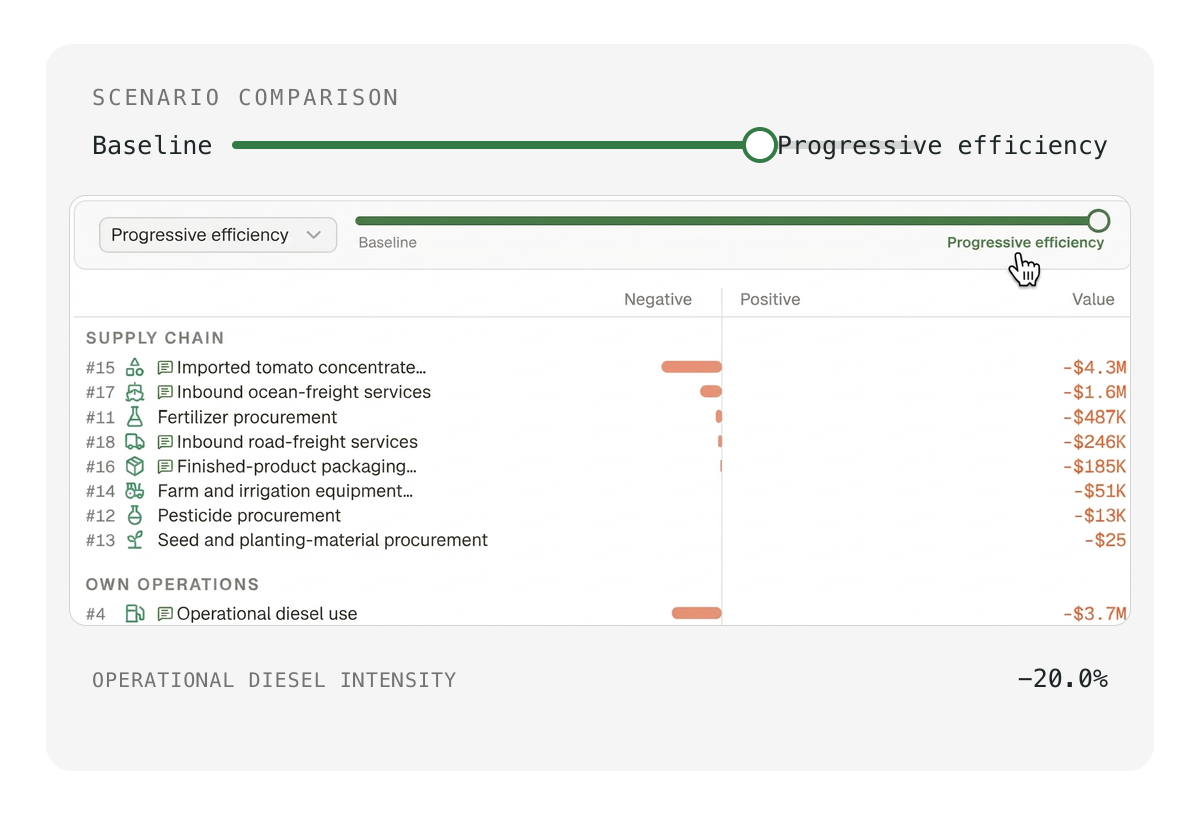
This guide covers everything you need to work with scenarios, from deciding whether a scenario is the right tool to interpreting the results. It is organized in three parts.
Part 1: Choose your approach. Before creating anything, you need to decide whether your comparison calls for a scenario, a separate assessment or a baseline correction. This section gives you the decision rules and a quick-reference table.
Part 2: Create your first scenario. A step-by-step walkthrough using a concrete example (a factory reducing its diesel consumption by 20%). This is the core of the guide: how to set up a scenario, check that it works correctly, and add a second alternative for comparison.
Part 3: Interpret your scenario results. Creating the scenario is only half the job. This section shows you how to use the chat to understand what changed, surface trade-offs, test whether the assumptions hold under uncertainty and summarize the conclusion for your specific use case.
Part 1: Scenario or separate assessment?
impactaccounting.ai offers two ways to compare alternatives: create scenarios within an existing assessment, or create separate assessments. Scenarios are available in both Organization and Project mode. The right approach depends on how much of the underlying model changes.
Create a scenario
For example, you could compare:
- current diesel consumption with reductions of 20% and 50%;
- a training program reaching 2,000, 3,000 or 5,000 people; or
- current recycling performance with "Progressive" and "Ambitious" targets.
If your situation matches one of these patterns, the same project with different values for selected assumptions, a scenario is the right approach.
A scenario changes the values you specify while inheriting everything else from the baseline.
💡 Tip: If you can say "Keep everything else the same, but change these values," use a scenario.
Create a separate assessment
Create a separate assessment when the alternatives involve meaningfully different activities or technologies, geographies, beneficiaries, functional units, assessment boundaries, or impact pathways.
For example, rooftop solar and renewable electricity certificates may require separate assessments because they involve different activities and supply chains. The same project delivered in another country may also need a separate assessment because the context, beneficiaries and counterfactual are different.
💡 Tip: If you need to rewrite most of the activity description, scope or boundary, create a separate assessment.
If you are working in project mode, see Assessing and comparing investments, projects or programs for how to structure the brief for a separate assessment, including what to include and what to leave out.
What if the baseline is wrong?
There is a third possibility: you may need to edit the baseline. The baseline represents the current situation or agreed reference case.
You edit it when:
- you find a number that is wrong, for example, you entered 2,000 beneficiaries but verified records show 2,450;
- you receive new data that replaces an earlier estimate;
- a measured figure becomes available for a variable the model had estimated;
- an equation in the model has been set up incorrectly; or
- the activity has changed and the model no longer reflects how it currently operates.
For example, suppose a community program initially estimated that it served 2,000 people, but verified records show that it currently serves 2,450 people. The baseline should be corrected to 2,450. You could then create scenarios to test a future expansion to 3,500 or 5,000 people.
To correct the baseline, ask the chat to update the relevant value or assumption and provide the new figure and supporting evidence, if available. The updated value should appear in the Model tab and replace the incorrect baseline value.
Quick decision guide
| Your situation | Recommended approach |
|---|---|
| Selected values change, but the model stays the same | Create a scenario |
| The current model contains incorrect information | Edit the baseline |
| The activity, context or model changes materially | Create or duplicate an assessment |
💡 Tip: If the activity, boundary, geography and pathways remain largely unchanged, start with scenarios. If those elements are materially different, create separate assessments.
Part 2: Create your first scenario
Once you have a completed baseline assessment, you can create a scenario to test how selected changes affect the results. Scenarios are available in both Organization and Project mode.
This guide uses a simple example: a factory wants to assess the effect of reducing its diesel consumption by 20%.
Step 1) Start from your baseline
Once you have run your analysis, you will have a completed assessment that represents your baseline.
Before creating a scenario, check that the baseline accurately represents the current situation. In our example the current operation is the baseline, the factory and production volume remain the same, and only diesel consumption will change.
Open the completed assessment. The Model tab shows the baseline results.
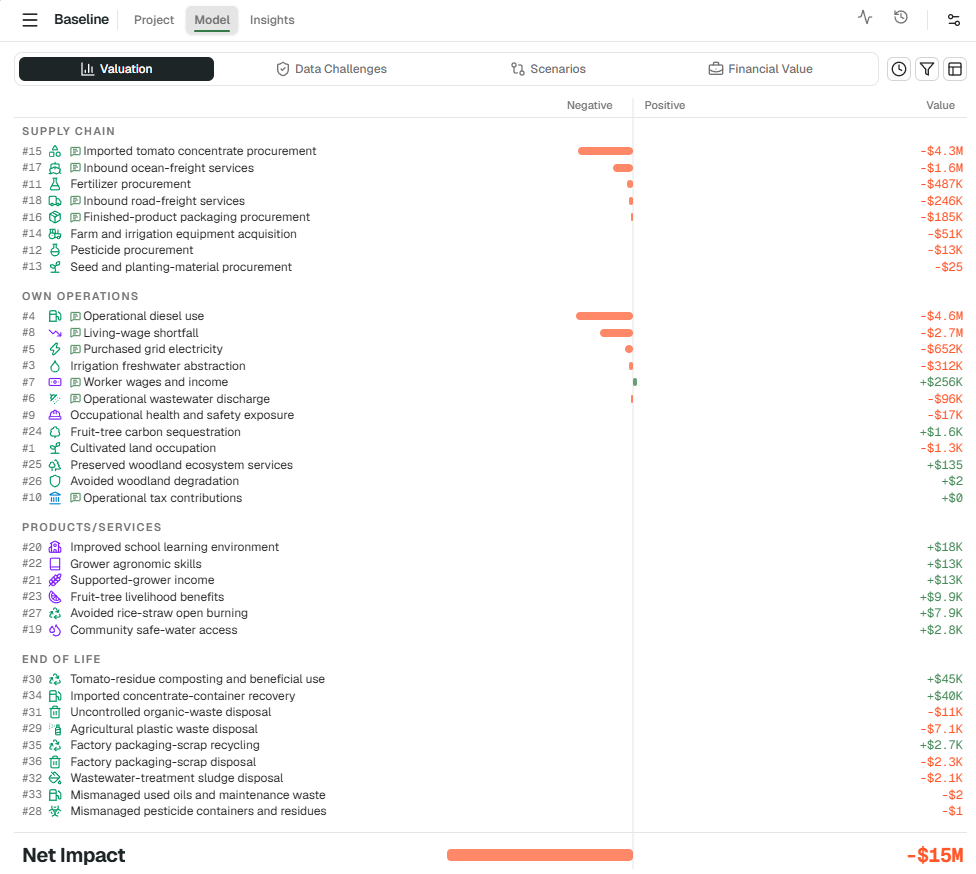
Confirm that the current diesel consumption value is visible in the pathway list before proceeding.

💡 Tip: Correct inaccurate current-state values before creating scenarios. To update the baseline, ask the chat to change the relevant value or assumption and provide the new figure and supporting evidence (if available).
Step 2) Decide exactly what will change
Start with one or two clear changes. This makes it easier to understand what drives the scenario result.
For each change, identify the value or activity affected, the expected change, whether the change is a percentage or a target value, and what should remain unchanged. For example:
| Assumption | Baseline | Scenario |
|---|---|---|
| Diesel consumption | Current value | 20% lower |
| Production | Current value | No change |
| Other assumptions | Current values | No change |
If you know the target value, include it. If you only know the percentage reduction, the chat can calculate the target value from the baseline.
Before proceeding, confirm that the scenario specification identifies one changed assumption and clearly states which assumptions remain unchanged.
💡 Tip: Be specific about what remains unchanged. This prevents the scenario from being interpreted as a broader transformation of the project.
Step 3) Ask the chat to create the scenario
Use chat to describe the change you want to test. For this example, enter:
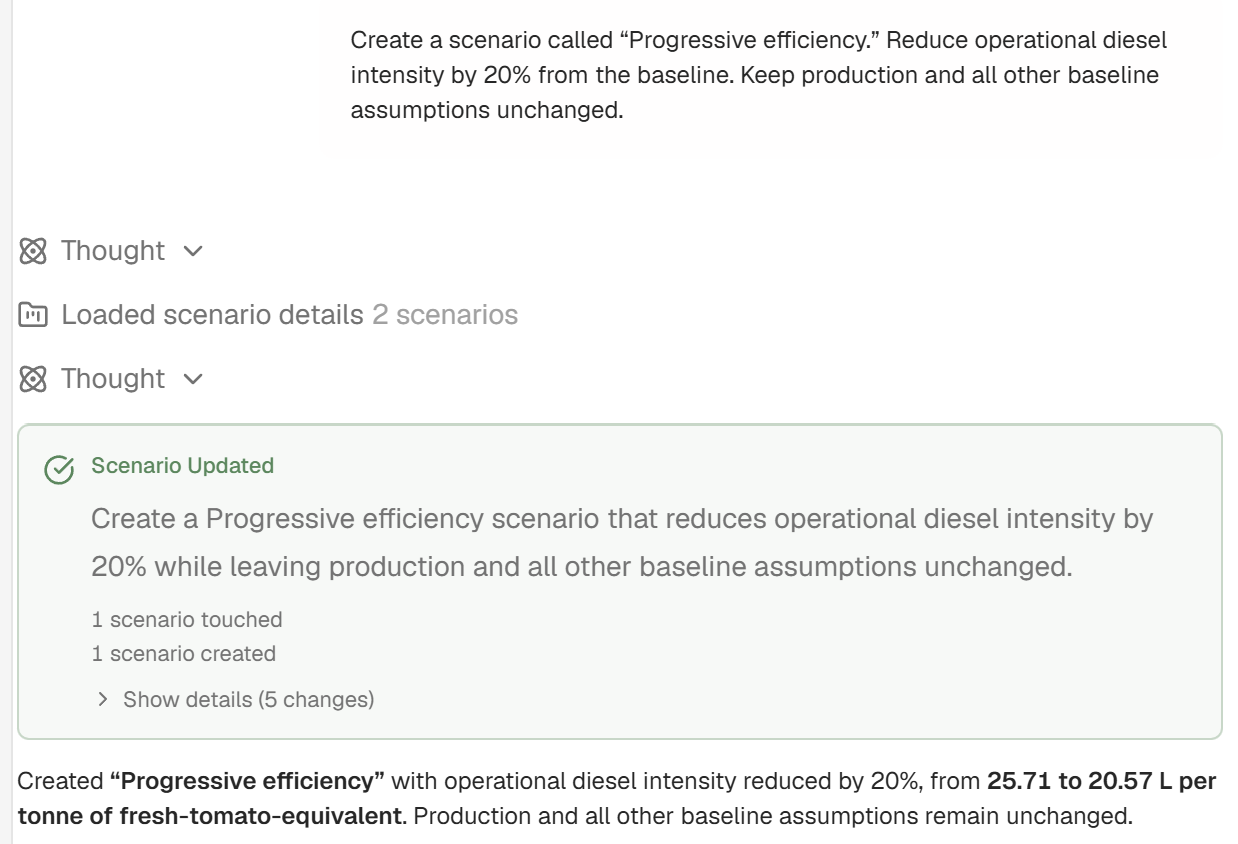
Create a scenario called "Progressive efficiency." Reduce operational diesel intensity by 20% from the baseline. Keep production and all other baseline assumptions unchanged.
The chat will create the scenario as an overlay on the baseline. It will not replace the baseline value.
If you are unsure which variable should be changed, ask the chat first:
I want to test a 20% reduction in diesel consumption. Which model variable should be changed to represent this correctly?
The software should change the underlying model input rather than directly entering a desired societal-value result.
💡 Tip: Ask to change the activity or assumption, not the final impact. For example, request "20% less diesel consumption," rather than "20% less environmental impact."
Step 4) Check the scenario assumptions
Open the scenario and confirm that the correct variable changed, the new value matches your instruction, the scenario has a clear name, and unrelated assumptions still use the baseline.
The scenario should show only the values that differ. Everything else continues to inherit the baseline model. Within the overview of the scenario, you can see the variables that have been changed, and add additional changes manually.
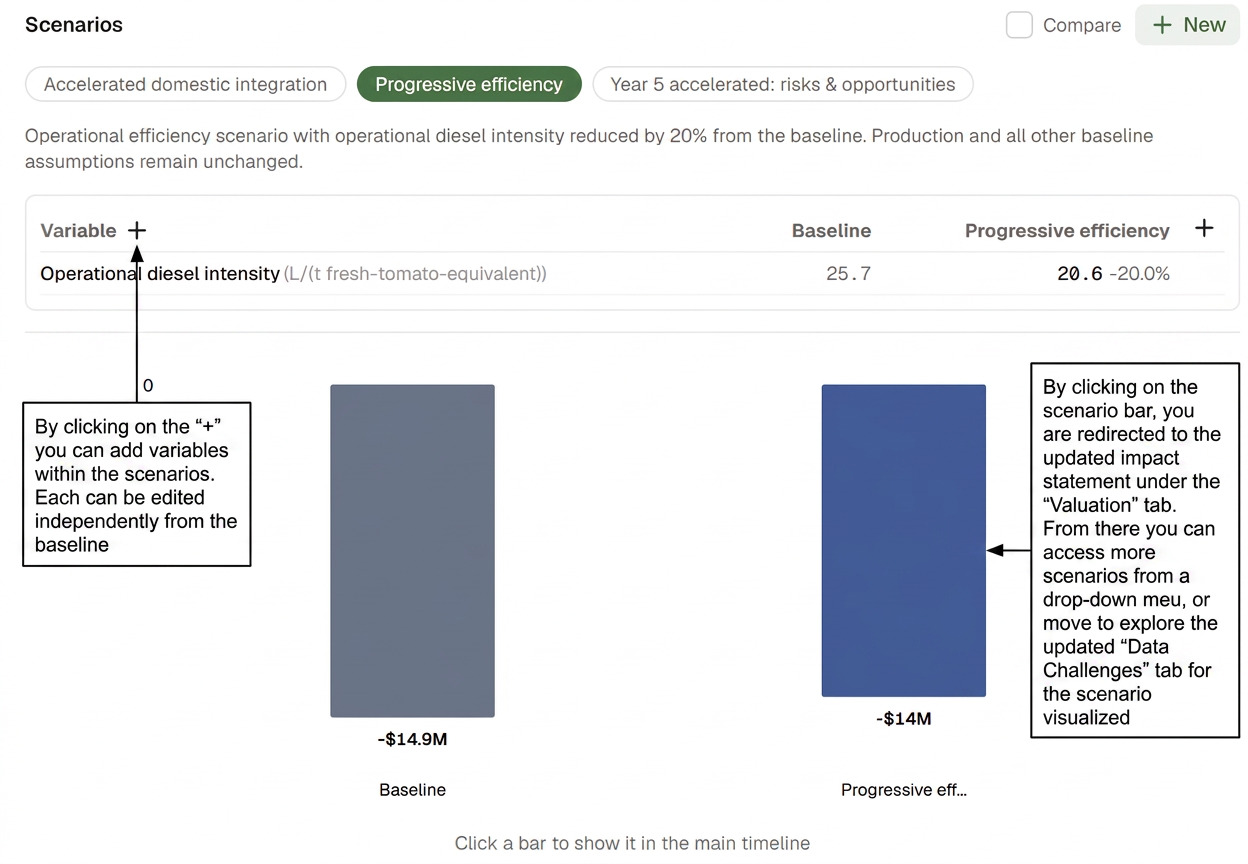
If something is wrong, you can also ask the chat to correct the scenario. For example:
Change the "Progressive efficiency" scenario so that diesel intensity is 20% below baseline, not total production. Keep all other values unchanged.
💡 Tip: Use scenario names that explain the alternative, such as "Progressive efficiency," "Ambitious expansion" or "Conservative delivery." Avoid names such as "Scenario 1" unless their meaning is documented elsewhere.
Step 5) Open the scenario comparison
Once the scenario is ready, use the Scenarios area under the Model tab to compare it with the baseline.
At this stage, check that the baseline is still available as the reference, the scenario result has been calculated, the direction of change appears reasonable, and the expected pathway responds to the new value.
For a portfolio-level comparison across multiple separate assessments (rather than scenarios within a single assessment), use the portfolio view and workspace download described in Building a fund or portfolio assessment.
Add a second alternative
Once the first scenario works correctly, you can add another option to the same comparison. For example:
Add an "Ambitious" efficiency alternative with operational diesel intensity 50% below baseline. Keep production and all other baseline assumptions unchanged.
You can then compare:
| Assumption | Baseline | Progressive | Ambitious |
|---|---|---|---|
| Diesel intensity | Current | 20% lower | 50% lower |
| Production | Current | Unchanged | Unchanged |
| Other assumptions | Current | Inherited | Inherited |
Keeping related alternatives together makes it easier to compare different levels of ambition.
💡 Tip: "Progressive" and "Ambitious" scenarios should answer the same decision question. If the alternatives concern unrelated decisions, such as energy efficiency and program expansion, keep them in separate scenario comparisons.
A reusable scenario prompt
You can adapt the following template:
Create a scenario called "scenario name." Change variable or activity from baseline value to scenario value, or by percentage. Keep important unchanged assumptions and all other baseline values unchanged.
For example:
Create a scenario called "Expanded reach." Increase annual beneficiaries from 2,000 to 3,500. Keep the delivery model, duration, outcome assumptions and all other baseline values unchanged.
After creating the scenario, always check that the correct input changed before using the results.
Part 3: Interpret your scenario results
Once you have created a scenario, use the Scenarios area and chat together to understand what changed, why it changed and whether the result supports a decision.
Step 1) Compare the results and ask what changed
Start by comparing the scenario with the baseline. Look at the change in total societal value, then ask chat to identify the pathways driving the difference.
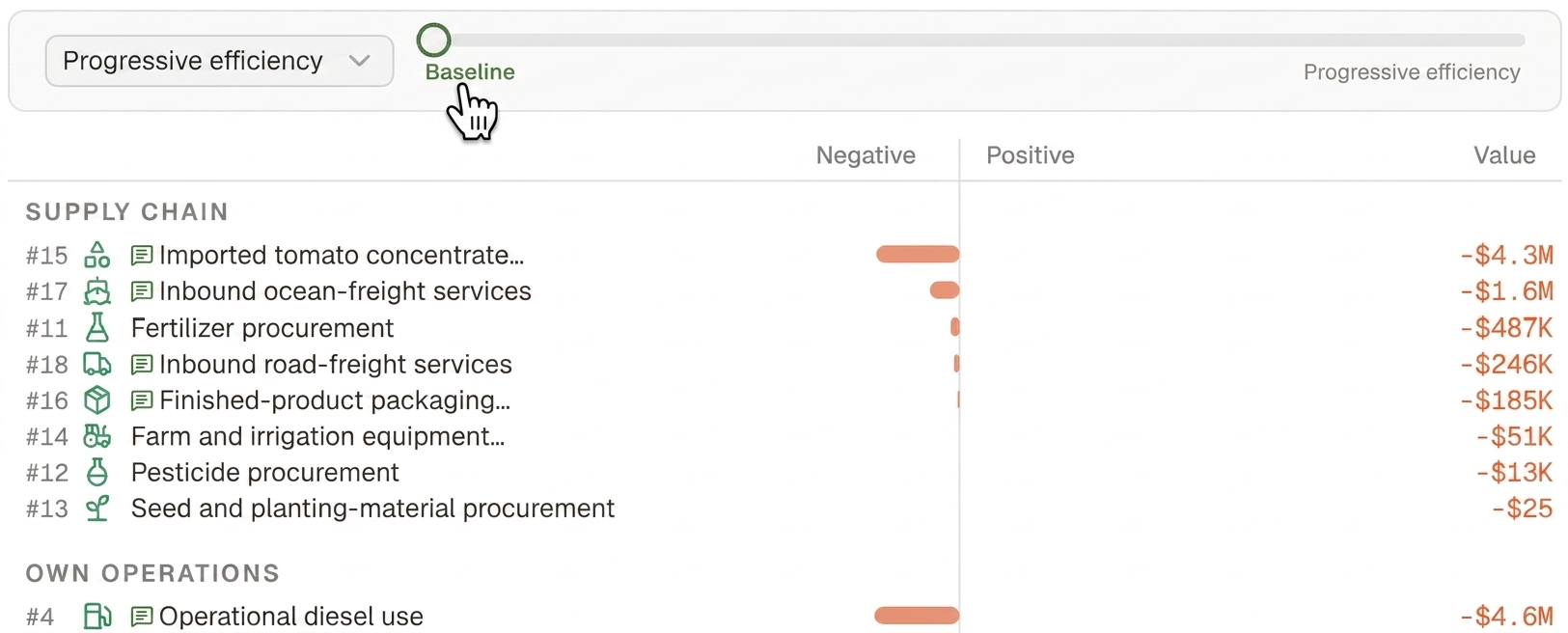
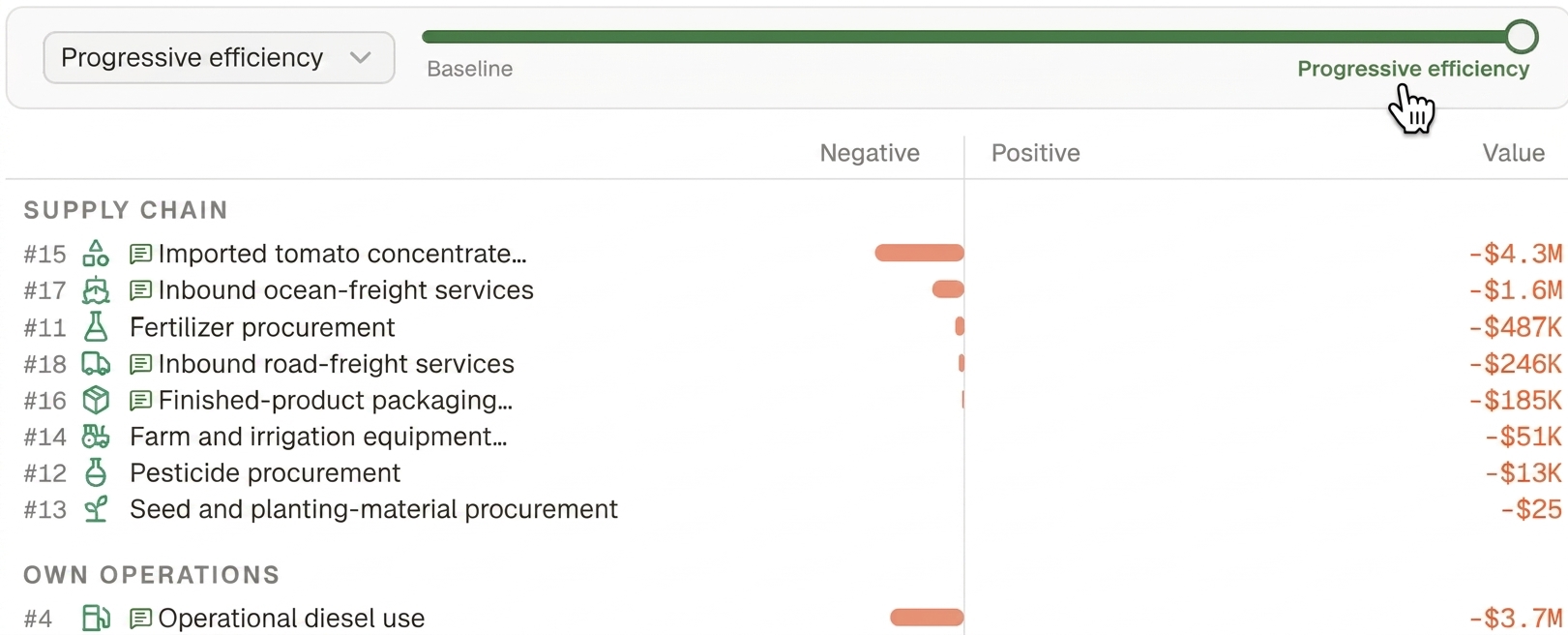
Use this prompt:
Compare the "Progressive efficiency" scenario with the baseline. Explain what changed, identify the pathways driving the difference and confirm which assumptions remained unchanged.
The first answer provides an overview. You can then dig deeper with follow-up questions such as:
- Why did this pathway change?
- Which variable produced the difference?
- How was the new result calculated?
- Did any linked pathways change?
- Did any pathway change unexpectedly?
- Which assumptions still use the baseline?
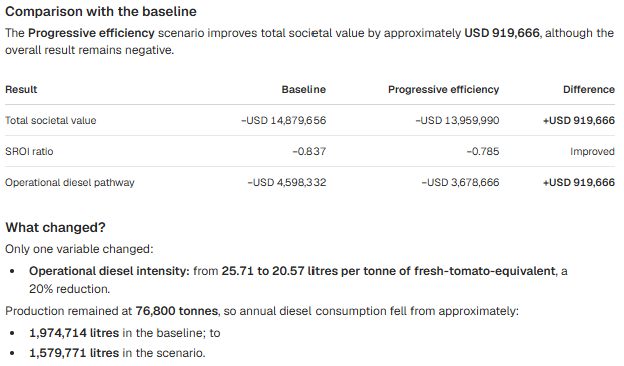
💡 Tip: You can continue questioning the chat as much as you'd like, until you can trace the result from the scenario assumption to the affected pathway and then to the total societal value.
Step 2) Identify trade-offs
A scenario can improve one pathway while making another worse. For example:
- electrification may reduce diesel use but increase grid-electricity consumption;
- domestic sourcing may reduce ocean freight but increase land and water use;
- program expansion may create more benefits but require additional staff, travel and materials.
Ask chat:
Identify the positive and negative trade-offs in this scenario. Has any impact shifted to another pathway, capital or value-chain stage?
A better total result does not necessarily mean that every impact improves.
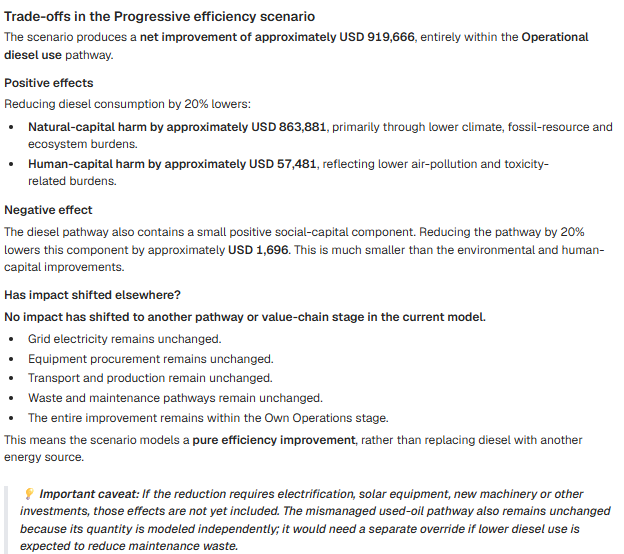
💡 Tip: Check whether the scenario includes all activities required to deliver the improvement. If lower diesel use requires new equipment or more electricity, those changes may also need to be modeled.
Step 3) Consider uncertainty before deciding
Scenario values may represent targets rather than measured results. Before making a decision, ask whether the change is technically achievable, what evidence supports it, which assumptions are most uncertain, and whether the scenario would still perform well if only part of the target were achieved.
Use this prompt:
Which assumptions are most uncertain in this scenario, and could they change the conclusion? Suggest a conservative case I should test.
For example, if the target is a 20% diesel reduction, you could create a conservative case using a 10% reduction.
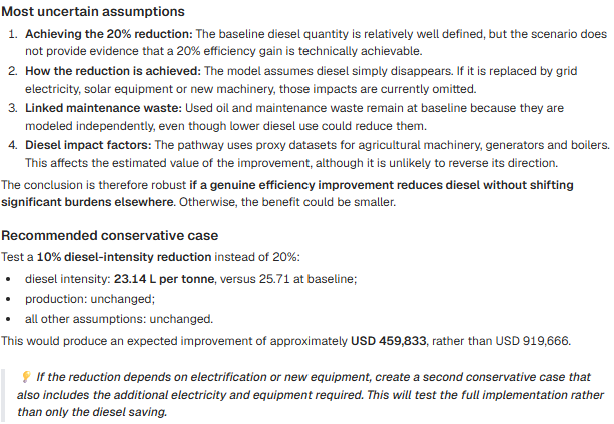
💡 Tip: A scenario is more decision-useful when it performs well under both the target and a conservative implementation case.
Summarize the decision
When you have finished exploring the results, ask chat:
Summarize this scenario for {insert here your use case}. Include the change from baseline, the main pathway drivers, positive and negative trade-offs, key uncertainties and the most important next step.
💡 Final tip: Do not stop at the top-line result. Use chat to investigate what changed, challenge unexpected results and understand whether the scenario assumptions are realistic before making a decision.