

How-to guide
Assessing and comparing investments, projects or programs
Run an impact valuation of a single project or program in Project mode, then compare several options like for like to support an investment decision.
In this guide, you will run an impact valuation of a single project or program using impactaccounting.ai. By the end, you will have a completed assessment with results ready to explore in the Model and Insights tabs.
Project mode assesses a specific project, investment or program. Organization mode assesses an entire organization and its value chain.
Open Project mode
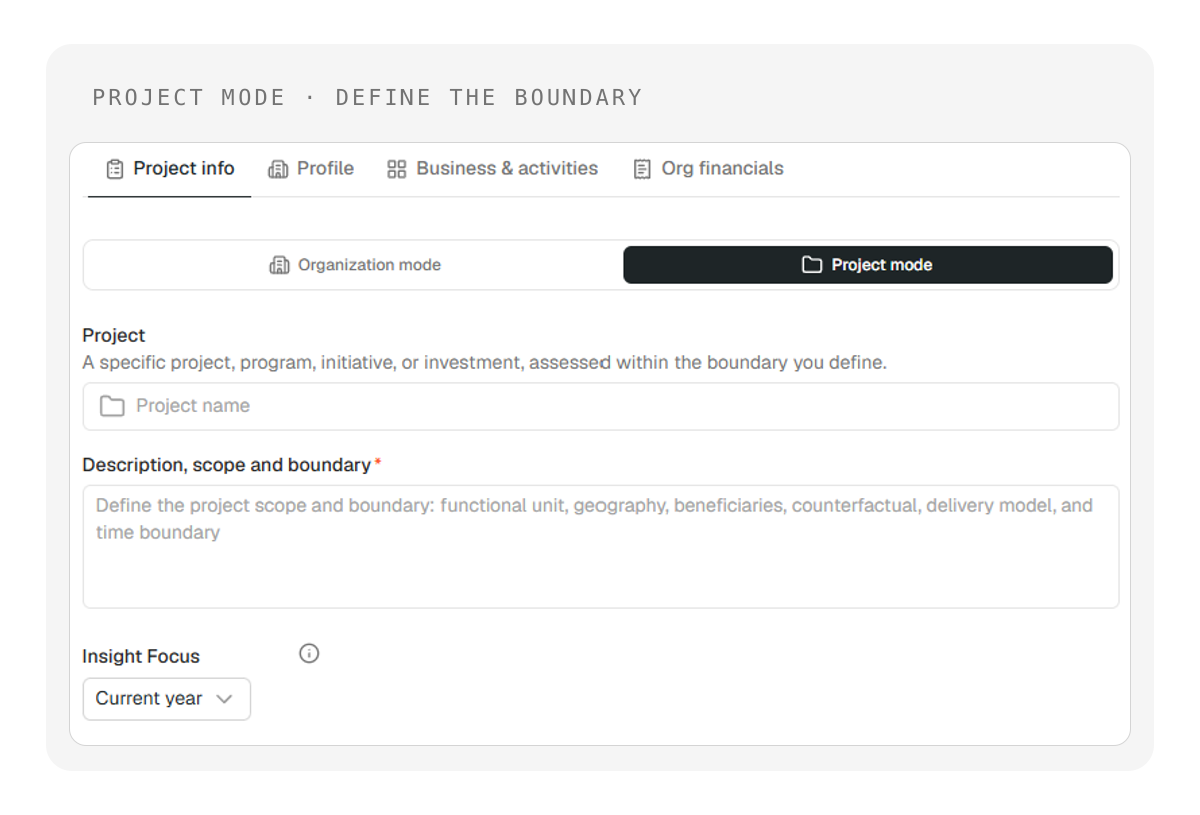
Open impactaccounting.ai. In the top menu, click Project mode (highlighted in black in the screenshot below).
The project setup screen now appears, with the Description, scope and boundary field at the top.
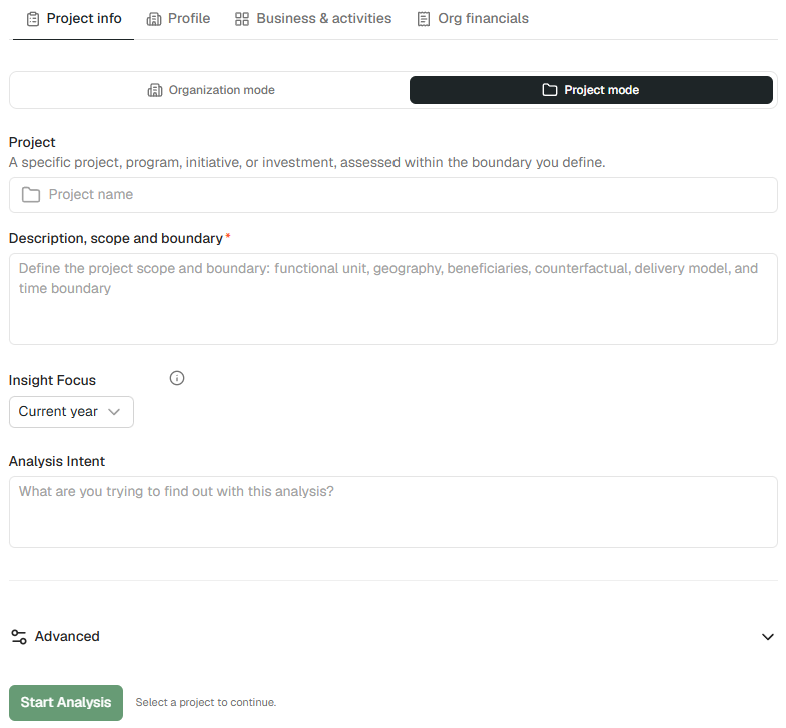
The software builds primarily on the information and data you provide. Even if you name the organization leading the project, the analysis will not be influenced by that organization's wider activities. The Description, scope and boundary field is required to start the analysis.
Prepare the project brief
You will now prepare the brief file that the software will use alongside the description field. Open a new document and structure it with the following sections, in this order.
- Write 1 to 3 paragraphs describing the activity. Be specific about what happens, who does it and what it produces.
- Define the scope of the assessment. State exactly which activities, sites, operations and stages are included and which are excluded.
- Define the functional unit. Quantify what the project delivers in physical or economic units, such as the number of people served, products sold, hectares managed or units of service delivered.
- List the activities required to deliver the functional unit. Cover the full value chain, including relevant materials, energy, transport, labor, infrastructure and end-of-life activities.
- State where the activity takes place. Include the relevant countries, regions or sites and identify where important supply-chain or delivery activities occur.
- Describe the beneficiaries. Explain who they are, how many people are involved where known and how they are expected to benefit.
- Describe the counterfactual. Explain what would happen without the project and what existing activity, product, service or situation it replaces or changes.
- Describe the delivery model. Explain who funds, manages and delivers the activity, including any important partners, suppliers or implementing organizations.
- Define the time boundary. State the reporting period and identify any effects that last beyond one year, such as the lifetime of an investment, the duration of funding or the persistence of beneficiary outcomes.
Your document should now provide a structured description of the activity, its boundary, delivery model and intended results.
Check what should not be included
Do not include lists of pathways, value factors or impact valuation results in this file. The software generates these itself, and external inputs can interfere with the analysis.
There are two exceptions:
- If you need a specific pathway to appear, name it and describe it in one sentence, but do not model it.
- If you have pre-existing impact results that could help calibrate the model, include them.
Your brief should now contain the facts and context needed to assess the project without prescribing the software's impact model.
💡 Tip: Every word in the description, scope and boundary field influences the analysis. Use present tense if the activity is happening now. Use future tense only if the activity has not started. Be precise about what is included and what is excluded.
Once you have a completed assessment, you can compare alternatives by creating scenarios or running separate assessments. This is covered in Building scenarios.
Launch the analysis
Now launch the analysis:
- Click Advanced to expand the advanced section.
- Upload the brief file you prepared.
- In the main field, enter the description, scope and boundary text.
- Give the analysis a name.
- Click Start analysis.
The processing screen appears and the analysis will take roughly 30 minutes. You will receive a confirmation email when it is done.
💡 Tip: Create a separate workspace for each project comparison or benchmark exercise. It makes analyzing and comparing the results much easier afterwards.
Open the results
When the analysis is complete, open the project to see the results in the Model and Insights tabs. For a full tour of these two views, see Assessing an organization.
You now have a completed project assessment. The quality of the results depends on the quality of the brief. A precise description of the activity, its scope, functional unit, geography, beneficiaries and counterfactual gives the software what it needs to produce a reliable impact valuation.
💡 Tip: If you want to test different assumptions within this assessment, such as changing a quantity, target or percentage, you can create scenarios without running a new analysis. See Building scenarios for instructions.
Compare multiple projects or build a benchmark
Comparing options is often what makes the difference in a good decision, for example weighing a rooftop solar installation against the purchase of renewable electricity certificates, or comparing the same program delivered in two different countries. To do this, you run one assessment per option and then compare the results.
When you write several briefs for the same or a similar project, with different baselines or options, keep the following rules in mind.
- Keep the brief identical on every element that does not change between options. Wording strongly influences the analysis. Using present or future tense, for instance, will lead the software to treat the impact as happening now or only later, which can change the results significantly.
- List the pathways you specifically want to see in the results, using the same pathway names and descriptions across all briefs, so the comparison is like for like.
- Clearly identify what changes between options in each brief.
- Define each option as a different activity or a different reference situation. The software already accounts for the change from a baseline within a single assessment, such as switching from grid electricity to solar panels, or from animal to plant protein. So each option should differ by activity, technology or delivery model, or by reference situation, such as a different country, beneficiary group or electricity mix being substituted.
💡 Tip: Create a separate workspace for each project or scenario analysis, and keep all the options you want to benchmark inside the same workspace. It makes comparing the results much easier afterwards.
Explore and benchmark the results
Once the assessments are complete, you have two good ways to compare them. Switching from one project view to another works, but without the results side by side it is hard to compare them in detail.
- Portfolio visualization. Click the workspace name on the sidebar to open a simple portfolio overview that compares all the assessments in that workspace. It is less flexible than the option below, but much faster for a quick comparison of project or investment options.
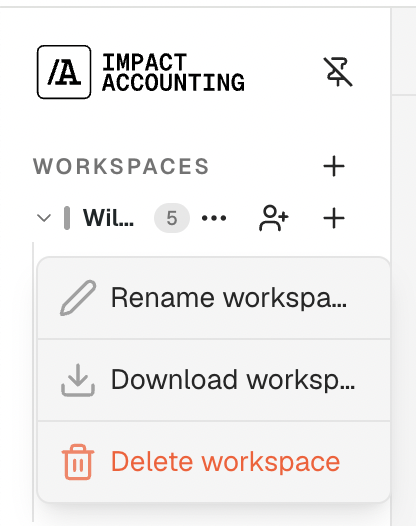
- Download the workspace. Click the three dots next to the workspace name in the sidebar and select Download workspace data bundle, then save the ZIP file locally. Decompress it before connecting it to a tool such as Claude Cowork. The folder contains a README, a methodology document, field-level schemas and analysis scripts that help Cowork understand its content and how to read it. From there you can ask for a comparison dashboard or any other analysis, since Cowork has access to all the software results. This is the most flexible way to explore a project or investment benchmark.
💡 Tip: If you already have an assessment for one investment or project, you can instruct the chat to change variables, data or pathways to create a different option. This is lighter and quicker than writing multiple custom briefs. You can also duplicate the whole project and then ask the chat to apply the changes, which is particularly useful when the same activity is assessed in different geographies or for different beneficiary groups.
With a solid brief and a consistent comparison approach, project mode becomes a powerful tool for understanding, quantifying and communicating the value of your projects and investments, and for choosing between them.
Related guides
For a full guide to assessing organizations rather than projects, see Assessing an organization. To test assumptions and compare alternatives within a completed assessment, see Building scenarios. To compare several completed assessments as a portfolio, see Building a fund or portfolio assessment.