
How-to guide
Building a fund or portfolio assessment
Build a portfolio-level impact assessment from multiple company and project assessments in one workspace, validate it with portfolio chat, and extend the analysis in Claude Cowork.
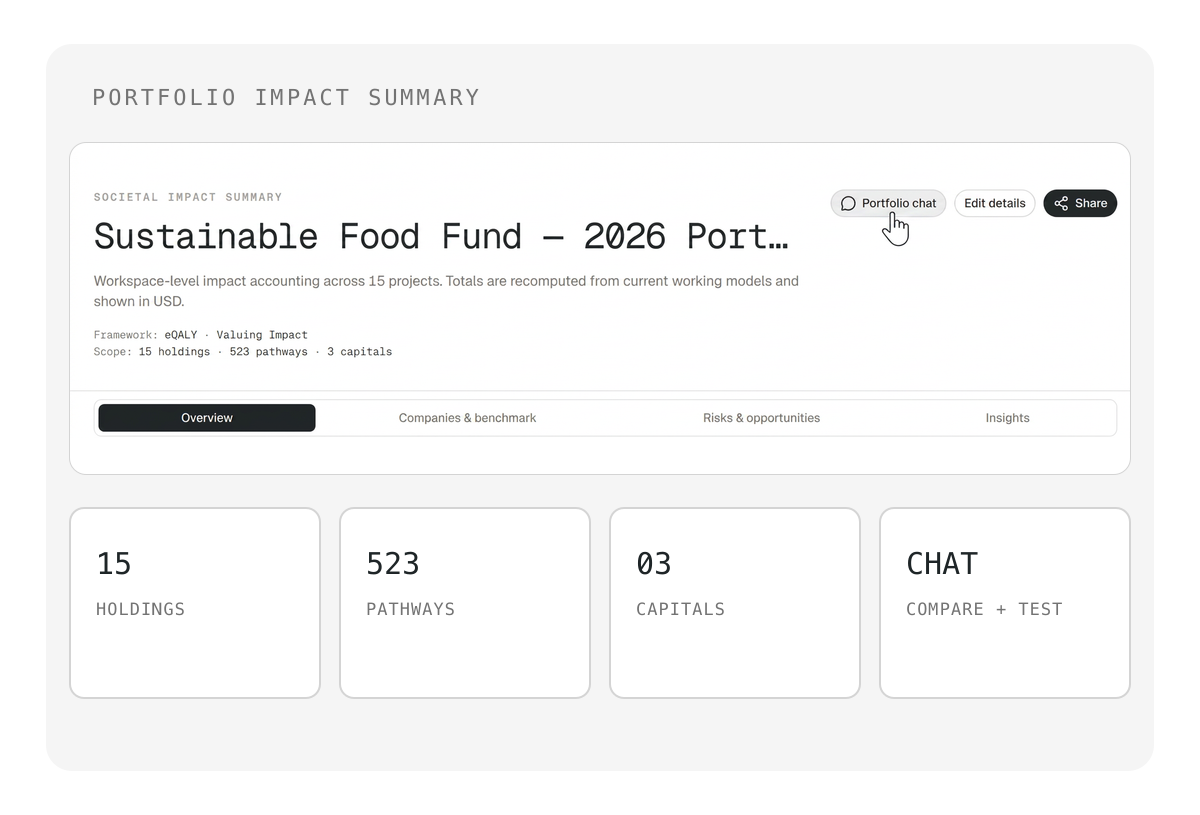
In this guide, you will build a portfolio-level impact assessment from multiple company and project assessments within a single workspace in impactaccounting.ai. You will use portfolio chat to compare the holdings, identify models that need attention, and revalidate the portfolio after making changes. Finally, you will download the workspace and use Claude Cowork to prepare external analysis or reporting.
By the end, you will have a validated portfolio comparison ready for an investment committee or board.
Step 1) Create a workspace
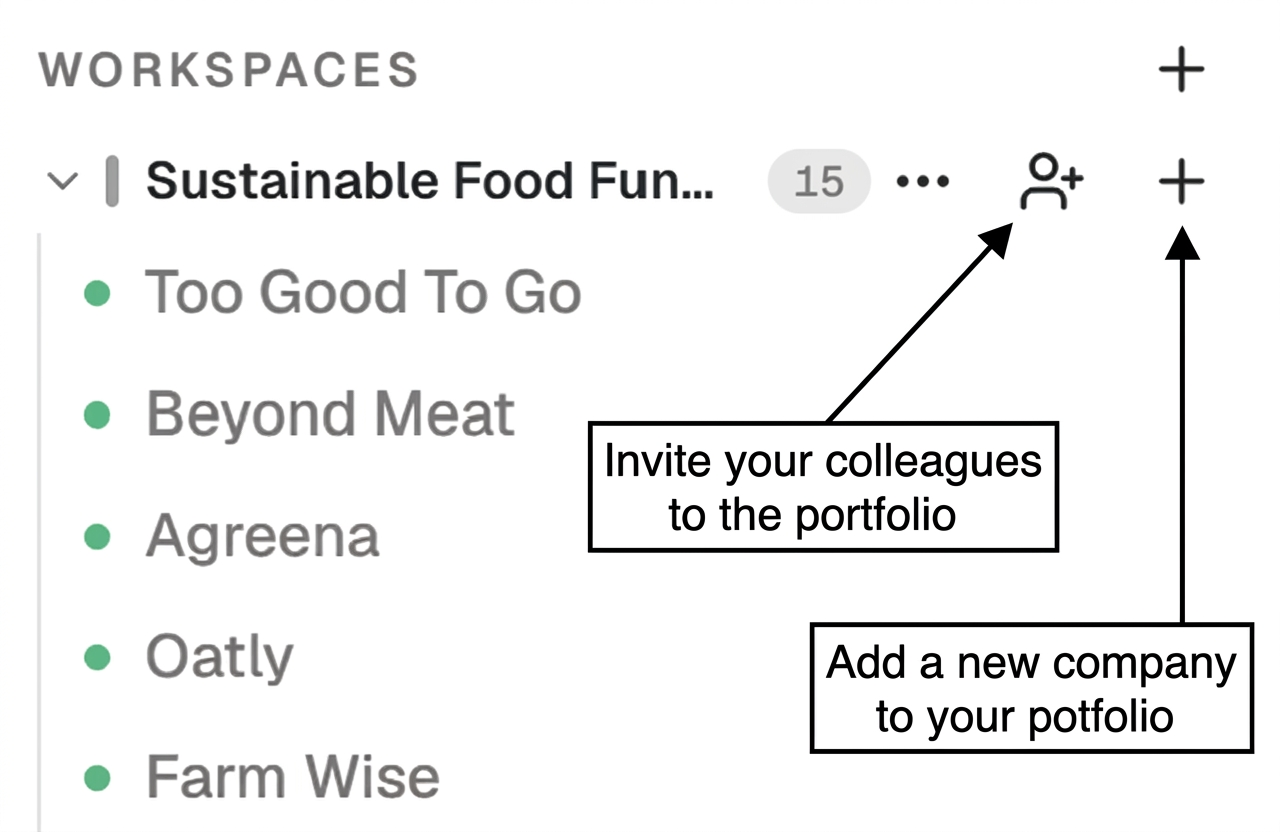
Open impactaccounting.ai and click New workspace. Enter a name that identifies the fund and reporting period, for example:
Sustainable Food Fund — 2026 Portfolio Assessment
The new workspace appears in your workspace list, empty and ready for assessments.
💡 Tip: Create one workspace for each portfolio or comparison exercise, not a separate workspace for every investment.
Step 2) Add the portfolio holdings
For each holding, click New assessment within the workspace. Choose Organization mode if the investment is a full company, or Project mode if it is a specific asset, project or program.
Complete the assessment using the process described in Assessing an organization or Assessing and comparing investments, projects or programs. Repeat until all holdings appear in the workspace.
💡 Tip: Do not assess the fund as though it were one operating company. Assess the underlying holdings separately, then compare them at portfolio level.
Step 3) Review each assessment
Open each completed assessment in turn. Check the total societal value and how it splits across human, social and natural capital. Identify the largest positive and negative pathways. Note any assessments with high uncertainty or significant data gaps.
Now check consistency across the assessments. Confirm that their reporting periods, currencies, organizational boundaries and valuation scopes are reasonably comparable. An assessment with a broader boundary may show more negative impacts simply because more of the value chain has been included.
After this review, you have a record of the assessments that are comparable and those requiring further work.
💡 Tip: Do not treat missing information as zero. Record incomplete assessments and material boundary differences before comparing companies.
Step 4) Review the workspace overview
Click the workspace name in the sidebar. The portfolio overview opens, showing all assessments side by side with their results.
Notice which holdings contribute the most positive and negative value. Check whether impact is concentrated in a few companies or spread across the portfolio. Flag any company where the results look unexpected or where the assessment may be incomplete.
The overview now shows which holdings and results require closer review before portfolio analysis.
Step 5) Configure the portfolio weighting
In the portfolio overview, open the weighting settings and select the method used to allocate each holding's impact to the portfolio.
Review the weight or ownership share assigned to every company or project. The gross view shows each holding's complete impact, while the weighted view shows the portion attributed to the portfolio.
For example, if the portfolio owns 20% of a company with a gross societal impact of USD 1 million, the weighted impact is USD 200,000.
Check that every holding has the correct weight, that missing weights are clearly identified, and that the allocation reflects the portfolio's actual exposure.
The portfolio overview updates to show each holding's weighted impact and contribution to the portfolio total.
💡 Tip: Record the weighting method and values used so that the portfolio results can be reproduced and explained.
Step 6) Analyze the workspace with portfolio chat
Open the portfolio chat from the workspace. Unlike an individual assessment chat, portfolio chat can analyze all company and project assessments in the workspace together.
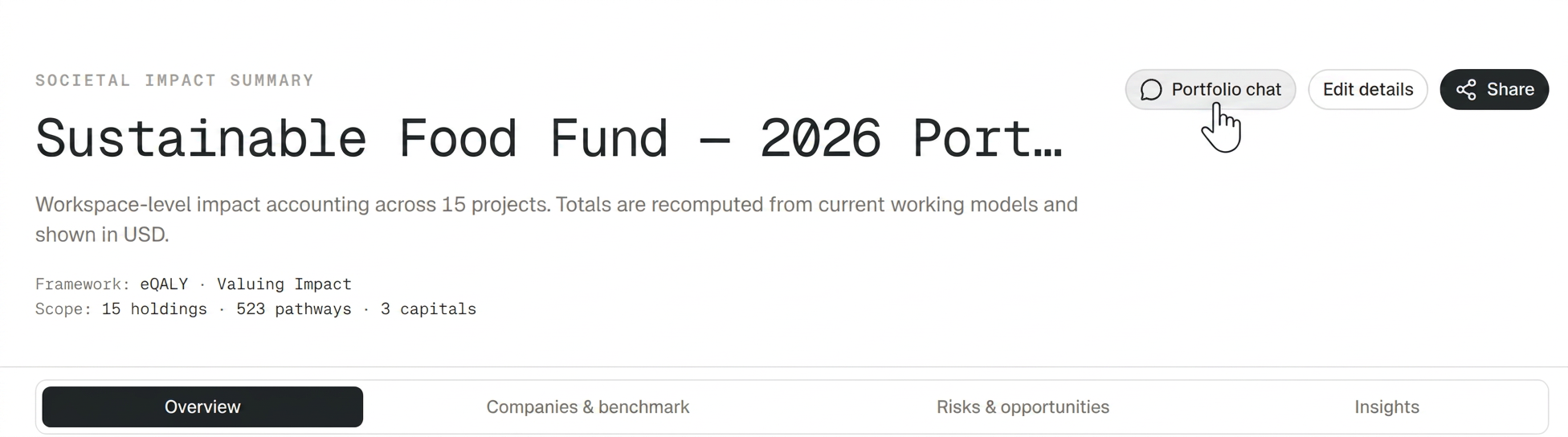
Start by asking it to validate the portfolio before producing rankings or totals:
Review all assessments in this workspace. Identify the companies and projects included, their reporting periods, currencies, assessment boundaries, available results, scenarios and material data gaps. Flag assessments that may not be directly comparable. Do not rank or aggregate them yet, and do not treat missing information as zero.
Review the response and resolve any important inconsistencies in the underlying assessments. Changes to an individual model must be made in that assessment's own chat, where edits can be confirmed and recorded.
Once the assessments have been validated, ask portfolio chat to compare them:
Compare the validated portfolio assessments using total societal value, human, social and natural capital, gross positive and negative value, SROI where available, uncertainty and evidence quality. Clearly flag assessments that are not directly comparable, and reconcile the results with the workspace totals.
Next, ask portfolio chat to identify where the portfolio's impacts are concentrated:
Which holdings and pathways account for 80% of the portfolio's positive value, and which account for 80% of its negative value? Show the cumulative shares and explain the main drivers.
Portfolio chat runs temporary calculations on the live workspace but cannot save changes to any assessment. To change a model, make the edit in that project's own chat.
If ownership information is available, ask for two separate views: gross company impact, and impact allocated to the fund based on its ownership percentage. For example:
Show gross company impact and investor-attributed impact separately. Use recorded ownership percentages only, identify holdings where ownership is missing, and do not assume that missing ownership means 100%.
Keep gross company impact and investor-attributed impact as separate views.
💡 Tip: Use portfolio chat for fast, methodology-aware analysis of the live workspace. Ask it to state its filters, exclusions and calculation basis, and to distinguish exported model results from additional portfolio calculations.
You now have a validated portfolio comparison from the live workspace, with the main holdings, concentrations and risks identified.
Step 7) Download the workspace
Click the three dots next to the workspace name in the sidebar and select Download workspace data bundle.
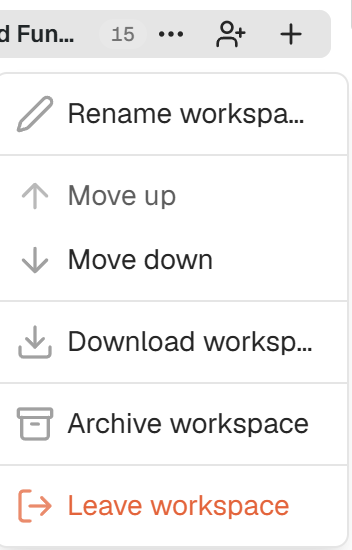
The download includes the structured assessments, results and supporting model files. When the download finishes, the workspace export appears in your selected download location.
If the workspace is downloaded as a ZIP file, save it in a clearly named folder, decompress it, and keep the exported folder structure unchanged. For example:
Sustainable-Food-Fund-2026/
├── README.md              # how to read the bundle
├── METHODOLOGY.md         # how the valuation works
├── manifest.json          # bundle contents and versions
├── workspace.json         # workspace-level settings and weights
├── projects.jsonl         # one row per assessment
├── materiality_summary.jsonl
├── sources.jsonl
├── schema/                # field definitions for every data file
├── tools/                 # scripts to recompute and break down results
├── Company-A/
├── Company-B/
└── Company-C/
Confirm that the extracted folder contains the individual assessment folders and workspace files.
The export is a snapshot of the workspace at the time it was downloaded. If assessments are updated after downloading, download a new copy before repeating the external analysis.
💡 Tip: Add the download date to the folder name so that you know which version of the portfolio is being analyzed.
Step 8) Extend the analysis in Claude Cowork
Open Claude Desktop. Connect the extracted portfolio folder by dragging it into the conversation or using the folder-connection option. Cowork now has access to the exported snapshot of all assessments in the portfolio.
Begin by asking Cowork to inspect and validate the export:
Review this exported impactaccounting.ai workspace. Identify the companies and projects included, their reporting periods, currencies, available results, scenarios and material data gaps. Check whether the assessment boundaries are comparable. Do not rank or aggregate the assessments yet, and do not treat missing information as zero.
Once the data has been validated, continue with:
Compare the validated portfolio assessments using total societal value, human, social and natural capital, positive and negative pathways, SROI where available, uncertainty and data quality. Clearly flag assessments that are not directly comparable. Reconcile your calculations with the totals in the export.
Cowork is useful when you need to combine the exported results with other documents, build custom reports or prepare materials for a specific audience.
If ownership or investment-allocation information is available, ask Cowork for the same two views used in portfolio chat: gross company impact, and impact allocated to the fund.
💡 Tip: Ask Cowork to separate software-generated results from any additional calculations or interpretations it creates.
Reconcile Cowork's portfolio totals with both the exported workspace data and the original workspace overview. Check that the largest positive and negative holdings match what you saw in the application, that missing data was not treated as zero, and that any currency conversions or ownership calculations used recorded figures only.
💡 Final tip: Build the portfolio analysis in two stages: first validate whether the assessments are comparable, then compare and communicate the results.
You now have a validated portfolio-level impact assessment built from individual company and project assessments within one workspace. You have analyzed it directly using portfolio chat and, where required, extended the analysis using an exported workspace in Claude Cowork.
Related guides
For details on setting up each company assessment, see Assessing an organization. For project-level assessments, see Assessing and comparing investments, projects or programs. To test and save different assumptions within an individual assessment, see Building scenarios.